
Printed Tarsia puzzles are great for the classroom, but sometimes you want students to solve on a device, whether that is in a computer lab, at home for revision, or set as homework. A share link turns any puzzle you have made into an interactive online activity that students solve in their browser. They do not need an account, and you do not need to print or photocopy anything.
Creating a Share Link
Sharing starts from your puzzle library. Go to My Puzzles, where every puzzle you have created is listed, and find the one you want to share.
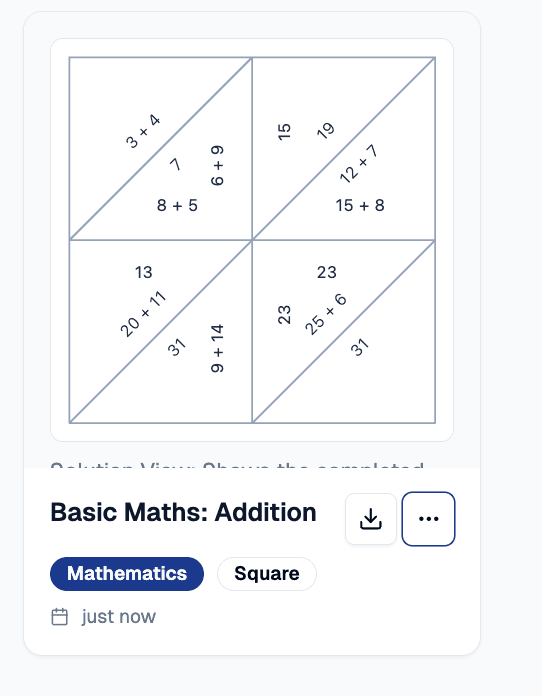
On the puzzle card, open the three-dot more options menu and choose Share Puzzle.
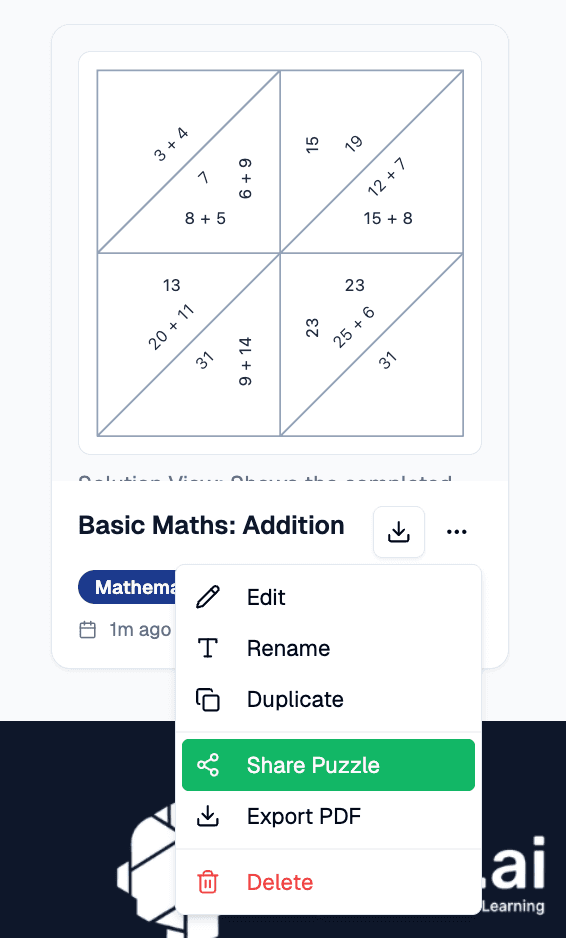
Tarsia.ai generates a unique link for that puzzle. If a link already exists, you will see it again rather than a new one, so the address you give students stays the same every time. The link is live the moment it is created, and any student who opens it can start solving straight away.
Three Ways to Share It
Once you have a link, the Share window gives you three ways to get it to students:
- Copy the link and paste it into an email, a message, or your learning platform.
- Show the QR code on your board so students can scan it with a phone or tablet and jump straight to the puzzle.
- Share to Google Classroom in one step, so the puzzle lands in your class stream as an assignment or material.
Choosing Your Link Options
Each share link has a few settings so you stay in control of how and when students can use it:
- Active or inactive. Turn a link off when an activity is finished, then turn it back on if you want to reuse the puzzle with another class.
- Expiry date. Set a date after which the link stops working, useful for timed homework or assessments.
- PDF download. Allow students to download the puzzle as a printable PDF from the solver page.
- Results download. Allow students to download a record of their score once they finish.
What Students See
When a student opens the link, they go straight to the puzzle. There is no login, no sign up, and nothing to install. They drag and match the pieces, and the self-checking format does its usual job: if an answer is wrong, the pieces will not fit together. Depending on the options you set, they may also be able to download the puzzle or their results when they are done.
Project It for the Class
While students solve on their own devices, you can put the puzzle up on the board with the Teacher View. In the Share window, select Teacher View and it opens on a clean, projection-friendly page in a new tab.
It has two tabs. Solution shows the completed puzzle, with every question and answer matched in place, which is ideal for modelling the activity or going through answers at the end. Puzzle Outline shows just the empty shape the students are building towards, with no labels, so you can display the target without giving anything away.
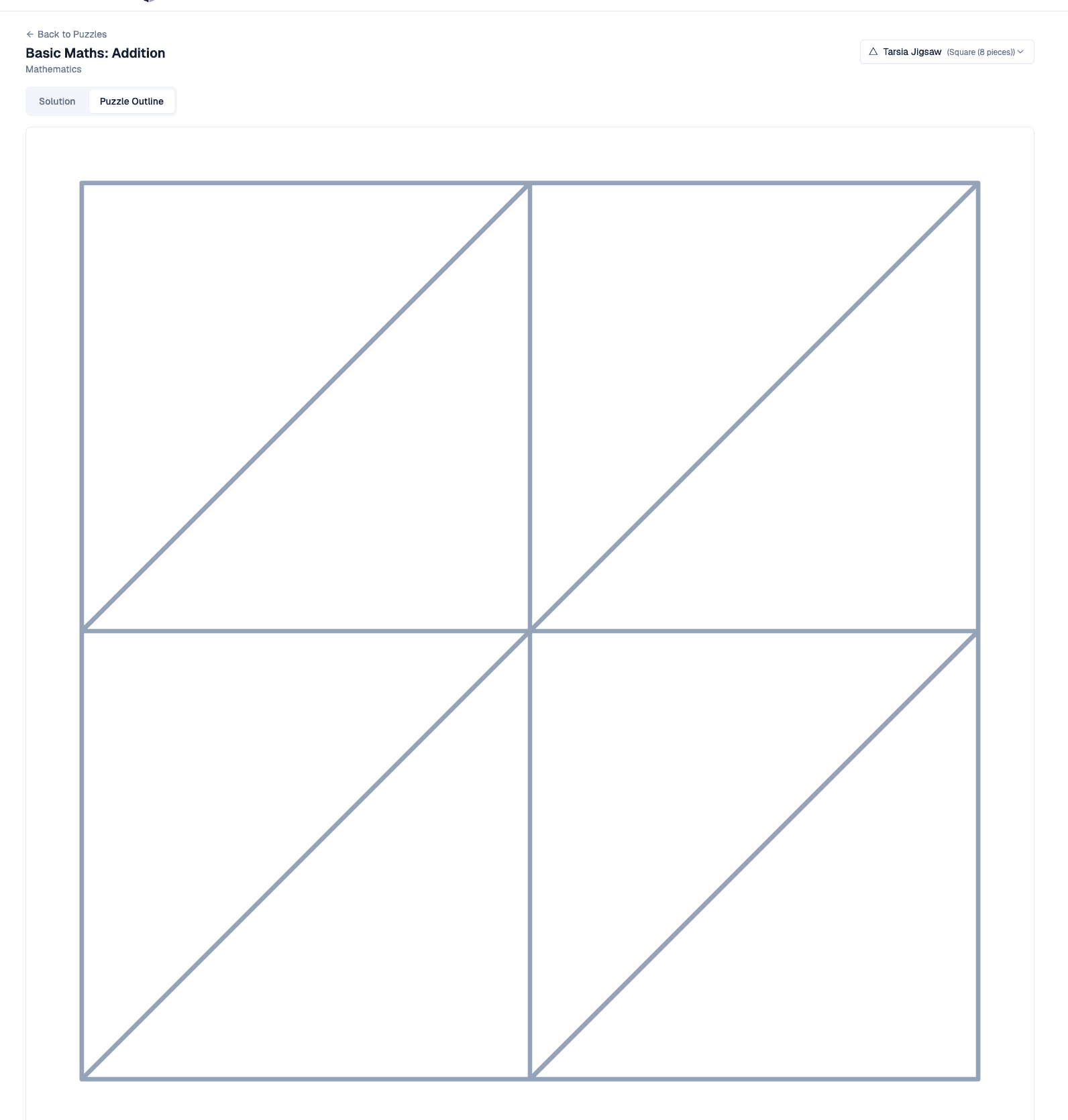
The format dropdown in the top corner lets you project the same questions and answers in any compatible format, so you can switch between a Tarsia jigsaw and a domino chain without leaving the page.
Free and Share Plus
Sharing is available on the free plan, which includes five share links in total across the lifetime of your account. This is a one-time allowance, not a monthly limit that resets, and it counts every link you create.
One important detail: deleting a share link does not give the slot back. Every link you have ever created counts towards the five, so it is worth creating them deliberately. The good news is that a single link covers a whole class and can be reused as often as you like, so five links can stretch across many lessons.
If sharing becomes part of your routine, Share Plus removes the limit and gives you unlimited links, plus the PDF and results downloads for students. Everything you create stays yours either way.